Table of Contents
The 3 Lead Telemetry User Interface
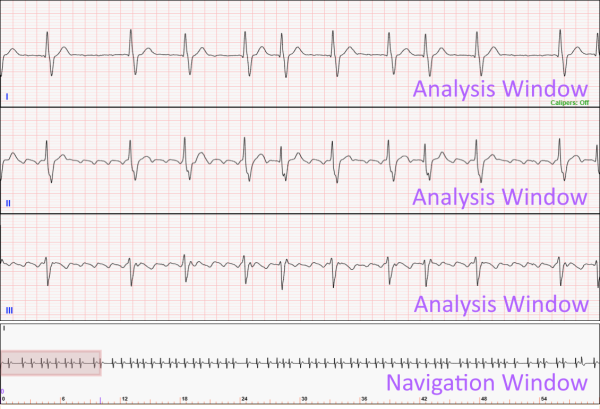
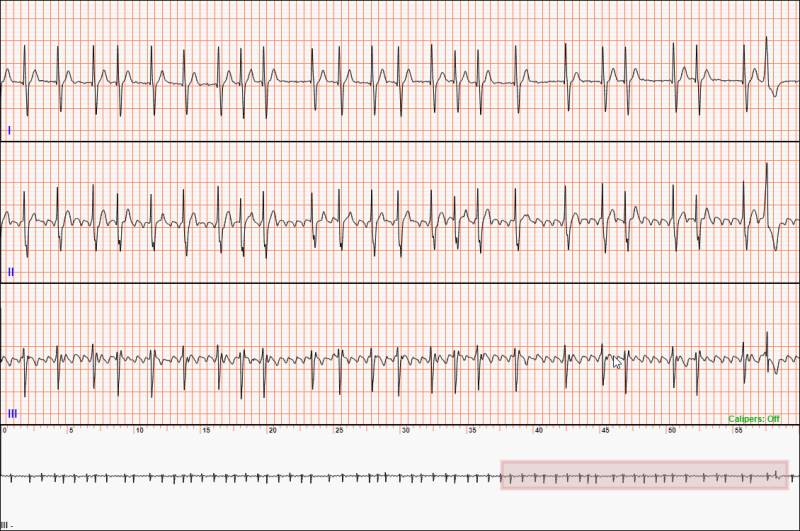
The User Interface for 30-second and 60-second long 3 lead telemetry strips is shown below. The interface consists of two defined regions.
- The top region comprises three Analysis Windows, one for each lead. You will use these windows to interact with the ECG using calipers.
- The bottom region, the Navigation Window, is the region you will use to move around the entire strip and zoom in and out on the ECG.
Important
The Navigation Window displays the entire ECG to be analyzed, while the Analysis Window only contains the contents of the Navigation Box for the three leads. When selecting the diagnoses that comprise your interpretation, be sure to analyze the entire ECG shown in the Navigation Window.
The Navigation Window
We will start the introduction to the user interface in the Navigation Window. The Navigation Window shows a single lead of the telemetry strip at a lower resolution. Be sure to use the Navigation Window to get a good overview of the contents of the entire strip.
The lead that is shown in the Navigation Window is the “active” lead in the Analysis Windows. The “active” lead is indicated in the lower-left corner of the Navigation Window. In this example, the “active” lead is Lead II.
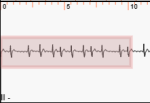
The pink box in the Navigation Window is called the Navigation Box. The Navigation Box serves two purposes:
- It defines the region of the telemetry strip that is displayed in the Analysis Window. As such, it is used to navigate or move around the entire telemetry strip.
- It is used to zoom in and out of the ECG.
Zooming In and Out
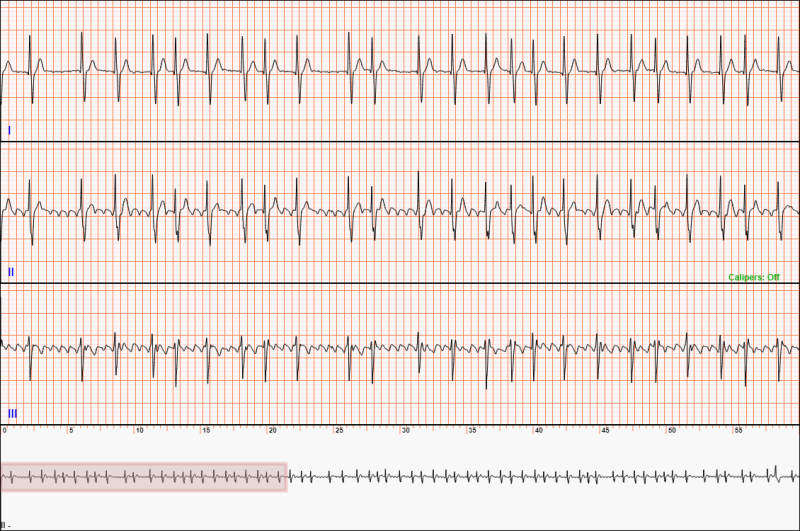
To zoom in and out, position the mouse cursor over the edges of the Navigation Window. When on the edge of the Navigation Window, the mouse cursor changes to either  , indicating you can resize the Navigation Box left or right, or
  , indicating that you can resize the Navigation Box up or down. Once the mouse cursor is on the edge of the Navigation Box, press and hold the mouse button and then move the mouse in the direction you wish to resize the Navigation Box. Figure 2 shows an example of the Navigation Box being resized to zoom out on the ECG. Notice how the ECG displayed in the Analysis Window contains more QRS complexes.
Moving Around the ECG
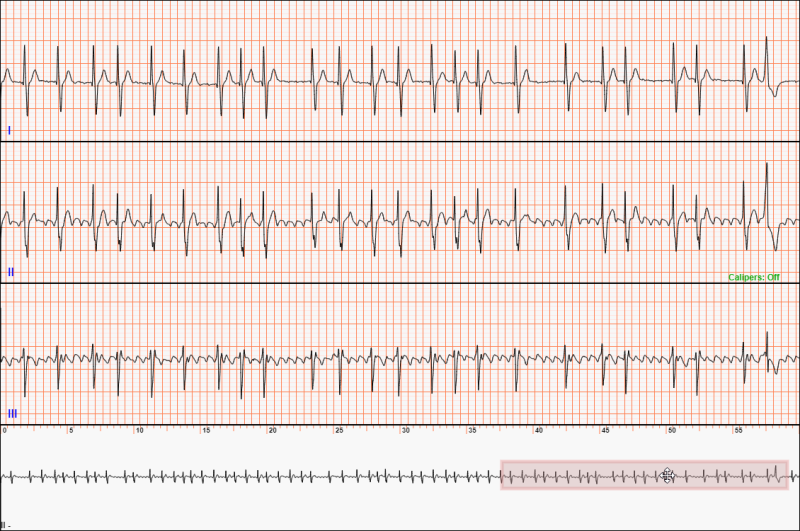
To move the Navigation Box around the ECG, first position the mouse cursor inside the Navigation Box. When there, the mouse cursor will change to  . Then press and hold the left mouse button and move the mouse to where you would like the Navigation Box to be. Figure 3 shows an example where the Navigation Box is moved to a different region of the ECG. Notice how the ECG displayed in the Analysis Window is updated to reflect the ECG contained in the Navigation Box.
Updating the Active Lead
To update the “active” lead, click the left mouse button in the Analysis Window of the desired lead. In this example, the left mouse button was clicked in the Analysis Window of Lead III. Notice that the ECG displayed in the Navigation Window updates to show Lead III. Also, notice that the Caliper mode (discussed below) moves to the Lead III Analysis Window.
The Analysis Window
As mentioned above, the ECG is shown with greater detail in the Analysis Windows. Calipers are available in these windows for you to use to measure intervals and amplitudes in the ECG. Two caliper modes are available, a timing caliper and a voltage caliper. The active caliper mode is shown in green in the lower right region of the active Analysis Window.
The Time Caliper
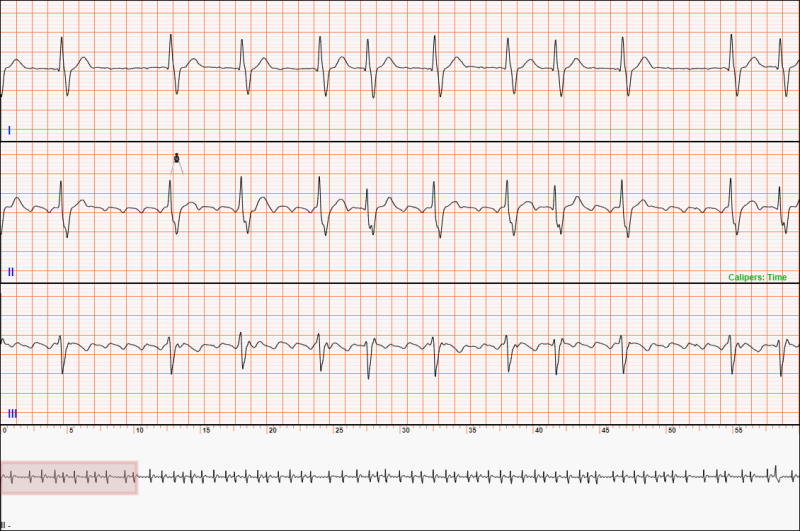
The Time Caliper mode is activated by pressing the 'T' key while the mouse is in the Analysis Window. When you press the 'T' key, notice that the Caliper Mode indicator in the lower right corner of the “active” Analysis Window updates, and the cursor in the Analysis Window changes to a caliper, as you see in the following image. Pressing the 'T' key again will turn off the Timing Caliper. By default, the caliper mode is activated in the second Analysis Window (usually Lead II).
Creating a Time Caliper Measurement
To use the Timing Caliper, move the left arm of the caliper cursor to the desired start location. Press and hold the left mouse button and move the mouse left or right to begin measuring. A Time Caliper Measurement consisting of two lines and a measurement box will appear on the ECG as you move the mouse. When you reach the desired end location, release the left mouse button. The Time Caliper Measurement will remain on the ECG.
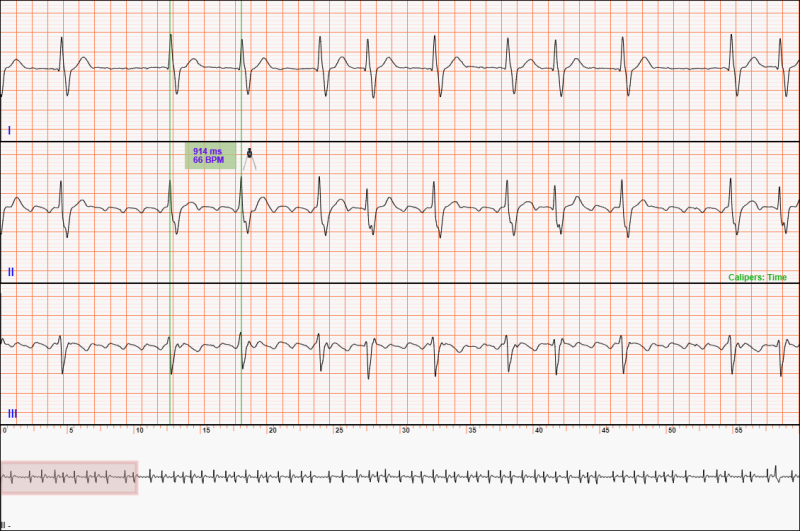
If a Time Caliper Measurement is present on the ECG and you want to measure a different region, repeat the steps for creating a new Time Caliper Measurement with a starting position outside the current Time Caliper Measurement.
Adjusting a Time Caliper Measurement
After creating a Time Caliper Measurement, you can adjust the start and stop locations by moving the measurement lines. Place the mouse cursor over one of the measurement lines. The mouse cursor will change to  , indicating the measurement location can be changed. Then press and hold the left mouse button and move the mouse left or right to set a new location. When at the desired new location, release the left mouse button. The updated Time Caliper Measurement will remain on the ECG. You can adjust the Time Caliper using the keyboard.
Moving a Time Caliper Measurement
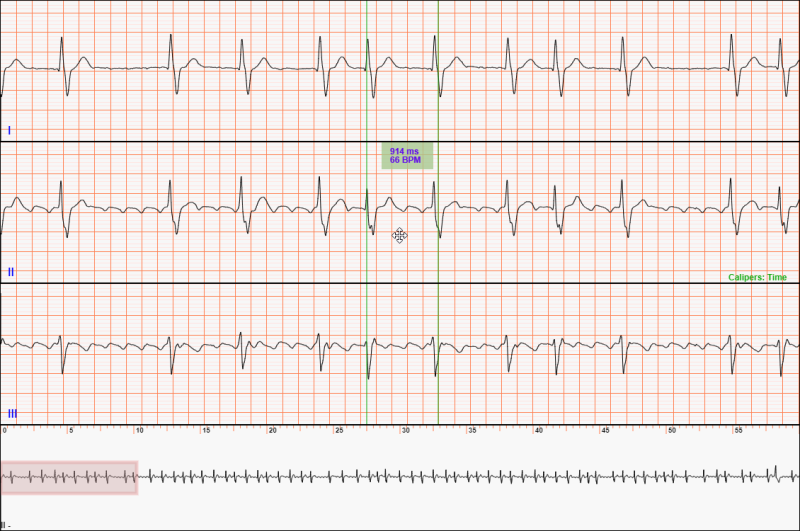
You can move a Time Caliper Measurement around the ECG in the Analysis Window. For example, if you want to check if the RR interval between the third and fourth normal QRS complexes in the image below is the same as the first RR interval, you can move the Time Caliper Measurement by placing the mouse cursor between the two measurement lines. The mouse cursor will change to to indicate you can move the measurement. Then click and hold the left mouse button and then move the mouse to the desired new location. You can also move the Time Caliper using the keyboard.
 .
.Clearing a Time Caliper Measurement
To clear a Time Caliper Measurement, you can
- Click the mouse on the ECG in the Analysis Window outside of the Time Caliper Measurement
- Toggle the caliper mode off and then on again by pressing the 'T' key twice
- Pressing the 'Escape' key
The Voltage Caliper
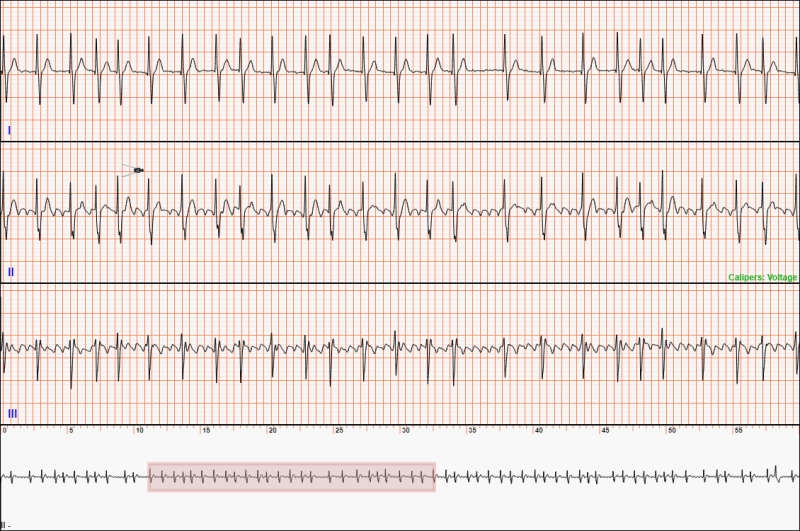
The Voltage Caliper mode is activated by pressing the 'V' key while the mouse is in the Analysis Window. When you press the 'V' key, notice that the Caliper Mode indicator in the lower right corner of the Analysis Window updates, and the cursor in the Analysis Window changes to a caliper, as you see in the following image. Pressing the 'V' key again will turn off the Timing Caliper.
Creating a Voltage Caliper Measurement
To use the Voltage Caliper, move the top arm of the caliper cursor to the desired start location. Press and hold the left mouse button and move the mouse up or down to begin measuring. A Voltage Caliper Measurement consisting of two caliper lines and a measurement box will appear on the ECG as you move the mouse. When you reach the desired end location, release the left mouse button. The Voltage Caliper Measurement will remain on the ECG.
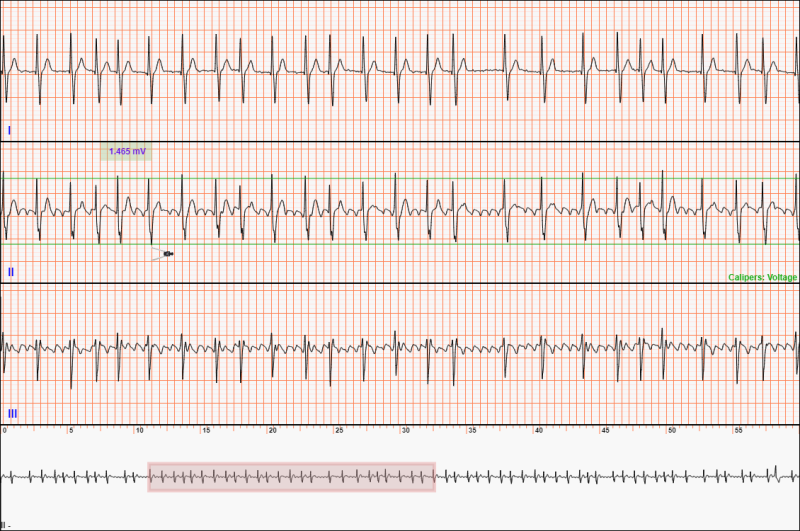
If a Voltage Caliper Measurement is present on the ECG and you want to measure a different region, repeat the steps for creating a measurement region with a starting position outside the current Voltage Caliper Measurement.
Adjusting a Voltage Caliper Measurement
After creating a Voltage Caliper Measurement, you can adjust the start and stop locations by moving the measurement lines. Place the mouse cursor over one of the measurement lines. The mouse cursor will change to , indicating the measurement location can be changed. Then press and hold the left mouse button and move the mouse up or down to set a new location. When at the desired new location, release the left mouse button. The updated Voltage Caliper Measurement will remain on the ECG. You can adjust the Voltage Caliper using the keyboard.
Moving a Voltage Caliper Measurement
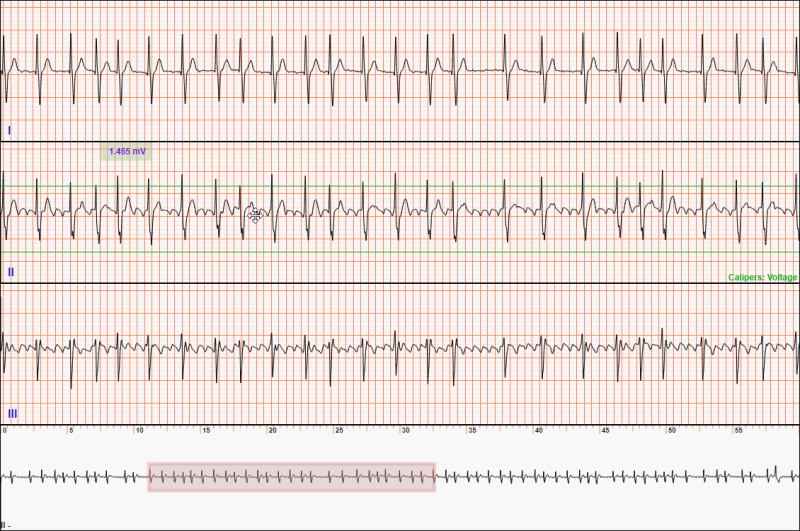
You can move a Voltage Caliper Measurement around the ECG in the Analysis Window to check for consistent voltage measurements across the ECG. First, place the mouse cursor between the two measurement lines to move the Voltage Caliper Measurement. The mouse cursor will change to to indicate you can move the measurement. Then click and hold the left mouse button and then move the mouse up or down to the desired new location. You can also move the Voltage Caliper using the keyboard.
 .
.Clearing a Voltage Caliper Measurement
To clear a Voltage Caliper Measurement, you can
- Click the mouse on the ECG in the Analysis Window outside of Voltage Caliper Measurement
- Toggle the caliper mode off and then on again by pressing the 'V' key twice
- Pressing the 'Escape' key